Showing posts with label Windows tricks. Show all posts

How To Enhance Your Windows 8 Experience

The Windows 8 was launched a mid big fanfare last year. Many of you would have been upgraded to Windows 8 right now. As with any program or application, there are merits and demerits. The same goes for Windows 8. It has been developed keeping in sight the touch-interface and Internet-cloud interface for today's need. Yet the age-old charm of Windows 8 has been there in bits and place but not quite completely. If you are considering to move back to Windows 7 experience once again, or waiting for the Windows 8.1 launch, then you should take another chance at Windows 8, but with slight changes or modifications that can surely enhance your Windows 8 experience. Below are some of the best and unique ways to make you improve your Windows 8 with great features and functionality:

SEE ALSO:

1. Start Menu:

Microsoft has been criticized a lot, for its exclusion of the iconic Start Menu in the Windows 8. Yet, you do not have to fret a lot, there are various applications that you can try to make it happen again in OS 8. There are various third-party add-on applications that you can download and try like:

  • StartIsBack: It gives you the same Start button icon, with the Start menu search box,and the similar jump lists. You would also get the aero transparency through it.
  • Pokki: This application is even better. It will configure the Windows 8 to boot to the Desktop straight. You can also entirely disable the blistering corners too. You can also widgets like Facebook and Gmail to Pokki, that lets you get latest status updates and email alerts.
  • StartMenu8: It will also boot the system directly to the desktop. You can also disable the sidebar to get rid of Windows 8 display.
  • Classic Shell: It is also a great add-on feature that will give the start menu and other co-related features and tools to your Windows 8 display.
  • Adding Star Menu without any add-on:
You can add the Start menu as a toolbar, which gives you access to all the programs of your Program Folder. You can do this by following these simple steps:
  • Enable -Show Hidden Files option.
  • Right-click on Taskbar and then click on Toolbars and then click on the - New toolbar.
  • Move to - C:\Program Data\Microsoft\Windows.
  • Click on Start Menu and then choose- Select Folder.
  • After completing these steps you will have a new Start Menu folder in the
  • Program Folder with all your installed and in-built programs being displayed there.

2. Ease of Access:

You would probably not know this but the new and updated File Explorer, Task Manager and Control Panel are way better than ever in controlling and monitoring the system in Wndows 8.You should be able to fully capitalize on these updated features. The Group Policy Editor is also a credible feature. It can let you tweak Windows 8 without adding any third party apps for a better customization.

3. Third party apps:

Some third party mail client apps like Thunderbird and eM Client provides a greater mail experience. There are other apps and widgets for almost all purposes which you can get for your windows 8 that will enhance your Windows experience to a great deal, since this OS is literally designed to function better with web programs and applications.

4. Windows 8 Keyboard shortcuts:

  • “Windows” key to - Open the Start screen or you can also switch to the already opened Desktop.
  • Windows key + D – To open Windows Desktop.
  • Windows key + . - To pin or unpin Windows apps screen side.
  • Windows key + X - To open the power user menu. This menu gives access to many power use features like Device Manager and Command Prompt.
  • Windows key + C - To open Charms.
  • Windows key + I - To open Settings, same as the Charms settings.
  • Press and hold Windows key + Tab - To show open apps.
  • Windows key + Print screen key - To create a screen shot. This will be routinely saved into the My Pictures folder.
SEE ALSO:

5. Open two apps side by side:

You can pin any app to the side of the screen, i.e. left or right to your wish. When you open an app, and then press Windows Key + . , it will move the app to the right-hand side of the screen,and then again pressing the same keys will move the same app to the left side. And then doing it the third time in a row will make it open in full screen. Meanwhile, you can also open another app on the available screen display, with the first app already being pinned and not closed. You can also use the drag feature to pin an opened app to right or left hand side of the screen by clicking the mouse cursor at the top of the tile. Even the Desktop can be pinned to left or right hand screen display.

6. Pin your web page:

The Internet Explorer 10, which comes by default in Windows 10 lets you pin any no. of web page to the start screen.

7. Enhance battery life:

  • Open Control Panel, and then look for the feature “Troubleshooting”.
  • You will see “Improve power usage” in the System and Security column.
  • Click on “Improve power usage” to open Power troubleshooter.
  • Click on - Next and you are done. It will automatically diagnose any battery problem with your system.

8. Start websites and apps right from Taskbar:

  • Right-click on the – taskbar.
  • Choose Toolbar's and then click Address.
  • Type short names of the apps (“calc” for calculator), or url of the website to launch the program you desire.
Still most of the people that have switched to Windows 8 are not fully aware of these enhancement tools, and contemplate other options like getting back to Windows 7, or waiting for Windows 8.1. I am sure, by covering and using these tips and techniques you can do more with your Windows 8 OS to make your PC life more fun and satisfying.

Extend Windows 8 Trial Period for More 90 Days


Hello,
Windows 8 is available free for 90 days, some of my friends using it any every time ask that how we can extend its period. For past few days I was searching solution for this, and today I got it. You can do this with command prompt.

Microsoft selling Windows 8 at very cheap price and proving us up-gradation at very low price. But me and my friends don't wanna purchase it so we I am using this trick. Now you can also use it.

How To Do:


  1. First of all open CMD Prompt as an administrator.
  2. Now in this type slmgr /rearm and press enter.
  3. A popup windows will open and you can see "Command Completed Successfully"
  4. Now finally restart your computer and you can see 90 days trial resettled.
Note: You can do above steps every 89th day or your trial period so that you can get another 90 days for free. This trick is based upon Windows 7, In Windows 7 we can do this 4 times, so maybe this would be same in Windows 8. 

Disable The Windows 8 App Store : Registry Trick

Admitting that the Store application in Windows 8 is a magnificent place to download requisitions, numerous scenarios exist where hindering the Store application is reasonable. Case in point, if the machine or tablet is open to people in general, the Store application ought to be impaired so unwanted programming wouldn't be able to be established. Moreover, frameworks that are utilized by kids within an unmonitored earth should not Store application buys plausible.

Numerous associations now use tablets and PCs in exceptionally open places. By having the Store application prepared, clients can download an expansive assortment of programming onto the mechanism which makes for a support bad dream. Moreover, kids will euphorically download a great mixed bag of programming if left unsupervised. As downloaded requisitions might have an extensive variety of inadmissible material, you will need access to the Store application blocked.

Steps To Do:

1. First of all Press Winkey + R to open the Run window.
2. Now type gpedit.msc to open the Local Group Policy Editor.


3. When the Group Policy Editor window appears, navigate to Computer Configuration -> Administrative Templates -> Windows Components -> Store.


4. Now in fourth step look at left side of the window, here you will see Turn off the Store application option to configure it, just double-click on it.


5. Set the setting from Not Configured to Enabled and click OK at the bottom of the window to save it.
6. Later, when you try to access the Store app, you will be notified by a message"Windows store is not available on this pc, please contact with system administrator".
7. If in future you want to get back your windows app store, so for this just reverse the steps and you will have it back.

Windows 8 Secret Mouse Tricks


Look of windows 8 is based upon touch, that's why user are very confused regarding mouse and keyboard. But no need to worry I am here with solution. I have some tips and tricks that I will share today.

Mouse Tricks on Desktop:
  • Put the rodent cursor on the more level left corner to open the Start Screen symbol. You can click it to about-face to the Start Screen.
  • To open the Quick Access menu just Right-click the Start Screen symbol.

Mouse Tricks on Start Screen:
  • In the lower right corner click the minus sign to reduce the Start Menu tiles to a smaller size so that all tiles can be seen on the screen at the same time. Click again to restore normal size.
  • Put the rodent cursor on the flatter left corner to presentation a thumbnail of the past application you went to. Assuming that you have just opened the Start Screen, you won’t see whatever.

Mouse Tricks on Any Screen:
  • Place the mouse cursor on the upper left corner and display all open apps. When the thumbnail for the previously visited app opens, move the mouse cursor down along the left side of the screen. Thumbnails for all your open apps should appear.
  • Moving your cursor to the upper right or flatter right corner carries up the Charms bar.
  • Moving your cursor to the upper left corner opens a thumbnail of the last app you visited. You can click the thumbnail to switch back to the previous app.
  • Place the mouse cursor on the lower left corner and right-click the thumbnail that is displayed to bring up the very useful Quick Access menu If you have only opened the Start Screen, you won’t see any thumbnail. The Quick Access menu is shown on the right.


How to shut Down Windows 8 Easily

When a person go for shutdown then he/she want to do it quickly. But in Windows 8 it takes multiple steps. You have to open the Charms bar >> Settings >> Power  and finally "Shut down". But I have a trick, with this you can create a desktop shortcut that will reduce these four steps to just one.


How To Do This:

  1. First of all right click on Desktop.
  2. Choose “New-Shortcut”
  3. Go to the line labelled “Type the location of the item…”
  4. Here just type shutdown.exe -s -t 0 and click on "next"
  5. Give a suitable name like Shutdown and click on "finish".
Note: Once the shortcut is created, you can pin it to the Taskbar.

How To Pin it To Taskbar:

  1. Just Right-click the shortcut
  2. And click “Pin to Taskbar”
Note: You can also place the shortcut on the Metro (Modern) interface

How To Place:

  1. Again for this Right-click the shortcut
  2. And Click “Pin to Start”

How to Uninstall Windows 8 In Few Steps


Microsoft revel the date of Windows 8, they continuously releasing Windows 8 beta versions before launching the main version. Many people using them and enjoying. If you are the one of those users who set up your PC to dual boot between Windows 7 and Windows 8 and now want to Uninstall Windows 8 From a Dual-Booting PC. You can do this easily without installing any app with a few clicks. I will tell to easiest method for this. First take the backup of your files and folders to external storage device.

You can do this in few steps:


Step 1. First of all Hit the Windows+R button on your keyboard to open the Run box and type msconfig there and hit the OK button.

Step 2. After this a windows open and here you can see lots of options like General, Boot, Services, Startup and Tools at top.

Step 3. Now Hit on Boot option form the Windows.

Step 4. Select the Windows 8 boot option. Click ‘Delete‘. Then Select the Windows 7 boot option. Click ‘Set As Default‘.


Step 5. To check that the changes have been made, Reboot your windows PC

Step 6. Now time to deleted Windows 8 from PC forever. Now press Windows Key + R and Launch Disk management, type diskmgmt.msc into the run box. Form Here you can Delete the Windows 8 partition, to do this Right click on the Windows 8 partition and Select Delete Volume.


Now no need to worry, Windows 8 is fully uninstalled.

How To Install Windows 8 From USB Pendrive | Bootable Pendrive For Windows 8


Windows 8 is the hot topic now these days. There is no such utility to install it through pendrive. But today i will give you a trick to install windows 8 through USB.

Follow Simple Steps:
Step 1: Take 4GB or more USB.
Step 2: Download Windows 8 and the Windows 7 USB/DVD tool
Note: Windows 7 USB tool working fine with windows 8.

Step 3: Create a bootable Windows 8 USB drive
Insert the USB. Install the Windows 7 USB/DVD tool. Once the utility opens, you should be able to browse for and select the Windows 8 ISO. Start the process. The process takes about five minutes depending on the speed of your drive. You'll see a message that reads "backup completed" when it's done.

 Its finish now. You can use this pendrive for installation. so now no need of DVD.

Download Microsoft "Fix It" Portable App To Fix Windows Errors


Hello Friends!!!
Now these days I am very much busy in my work. I am trying my best to update my blog. So today I have info about "Fix It" App. Microsoft released new portable troubleshooting app to Automatically fix your Windows errors.

Previously Microsoft provides several fit it tools created for different issues like Internet Explorer issues, Windows Media player issues, Office issues, Theme issues, USB device issues, Windows Update issues, different hardware issues, Desktop issues, etc etc etc a long list is here. But Fix It brings all common tools in one portable package and you need to download it once, So it is all in one product. It was in beta stage earlier and now Microsoft released the latest final version to all.

 
Fix it finds and fixes many common PC and device problems automatically. It also helps prevent new problems by proactively checking for known issues and installing updates. After downloading, run the EXE file and it'll download the full Fix It tools archive on your system. You can save the folder in any desired location or on your USB device.


Download Fix it Portable App

HOW TO FORMAT A WRITE PROTECT USB DRIVE OR MEMORY CARD


Yesterday my friends asked for this solution and hence as the post title says we will be trying to fix a very common error faced by many USB Drive users. I searched on google and found 3 solution for this. In this post i am sharing these methods.

Primary Checks ( Only for Security )

1. Make sure the write-protection latch of your drive (if it has any) is turned off.
2. If you are using an updated antivirus, try scanning the drive for viruses.

Solutions For This:

1. By Fixing Registry

  • Press Winkey + R (or just open the Run from Start menu). Type regedit and hit enter.
  • Go to HKEY_LOCAL_MACHINE\SYSTEM\CurrentControlSet\Control\StorageDevicePolicies

    NOTE : If this is not there, you may need to add this entry. For that download the batch file add.bat from here, and double-click the file. The entry will be added to registry.
  • Now in the right pane double-click the key WriteProtect. Now set the Value Data to 0 (zero) and press OK.
  • Exit Registry and restart your PC.

2. Using Formatting Utility

As the solution suggests we will be formatting the USB drive, so backup all the items in the drive first before carrying out htis step.
  • Download Apacer Formatting Utility.
  • Unzip the pack to a folder. Now double-click the Start.bat file in that folder. This will initiate the formatting. Wait until the formatting completes or the LED of the drive stops blinking. If you fail once give it few more try.
  • Now remove the pen-drive and plug it in to the PC again. Now, open RUN and type cmd and hit Enter.


3. Trying a low-level format

This is yet another solution which will try to solve the problem by using a low-level format. Don’t forget to backup your drive items.
  • Download the free utility HDD Low Level Format Tool.
  • Now using it, perform a low-level format of your USB drive. If you fail once give it few more try.
  • Now open RUN and type diskmgmt.msc, hit Enter.
  • Now right-click the USB Drive and press Format. Now do as shown in the screenshot below. Then press OK.

How To Turn ON your PC with a Double-Click of Mouse

Heya!! Good Morning..
Today I have Windows trick for you, Do you want to Turn On Turn ON your PC with a Double-Click of Mouse??
Yeah.. its really simple. You can do this easily, only go to BIOS just follow the below steps:


Steps are here:
1. First start your computer.
2. Now open your BIOS Screen (usually “Delete”, “F2″, "F12" keys)
3. When the BIOS message appears to enter your CMOS configuration. Select Integrated Peripherals from main menu
4. If PS/2 mouse power on DISABLED, then activate it. It will became “Double-Click“
5. Press “Esc” key to exit.


6. Now save and exit.
7. Turn off your PC.
8. Now double-click the left mouse button. Your PC will turn ON !

Enjoy our simple tricks....

Best Methods For Copy Fast any Easy

Copying File is so boring and slow process. Windows File Transfer System is so Slow, It takes lots of time. Sometimes it give us pain. But now you can supercharge the simple act of copying and pasting.

Today i have 3 apps to make this process super fast. These include transfer resuming, copy speed computation and control, improved copy progress display, copy list editable while copying, copy list saving/loading, and an error log. So Here is the Apps:

1. TeraCopy:
 I is very much beneficial in Atom Processor. TeraCopy enables you to copy and move files faster and easier. Unlike the standard Windows copy/move options, TeraCopy can resume broken file transfers, skip and report bad files (without terminating the transfer) and calculate CRC checksums .
2. SuperCopier
SuperCopier replaces Windows Explorer file copy and adds many features. This one is amazing, i love it also. These include transfer resuming, copy speed computation and control, improved copy progress display, copy list editable while copying, copy list saving/loading, and an error log.
FastCopy is the Fastest Copy/Delete Software on Windows. It can copy/delete unicode and over MAX_PATH(260byte) pathname files.
 

Transform Windows 7 into iOS | Convert Windows 7 into iOS


Now Give a new Look to your windows. Today I am posting a new skin pack for apple lovers. It is working fine in my pc, so you can use it.
This is the simple transformation pack which will change the overall view of the current operating system, including the login screen, boot screen, desktop, icons, etc into Apple's iOS device :). This package can also edit all the wallpapers, visual items, etc. Steps are given to transform Windows Seven into Apple's iOS

 
Features Of Windows 7 Transformation :

  • Get the fresh look of Apple's iOS
  • Transforms Boot Screen, Login Screen, etc
  • Easy one click transform
  • Even changes the icons and images as well as Explorer to iOS ones
  • Changes the start menu and appearance
  • Easy all-in-one installation pack


Download 32 bit

How to Add UNINSTALL Option in Right Click with MenuUninstaller

Whenever I want to uninstall a program, I have to go in Windows' Control Panel, find the uninstall tool, wait for it to show a complete list of my installed programs, and it is wastage of time... After that scroll through the list to find the program I want to remove, and then start the process. That's about four steps too many, in my opinion. But i wanna Add an Uninstall Option to Windows Content Menu, and solution is here. Microsoft must add this option to windows 8, until use it in all windows flavor.


Menu Uninstaller is a small utility which can do this work for you easily so you simply download this amazing application from below link and than you have to run the setup process and boom now you will have the same option like its in the above image, now uninstall any application. Now just do every work with right click....


How to ignore unwanted email in Outlook


hey guys, this is my first trick in this blog. Hope you like this....


Some time your schedule gets too hectic that u dont have time to read emails conversation which are not much important to you. Even when you choose not to read those emails you still need to delete them. Here’s a good news, you need not have to read or even delete unwanted emails. Outlook lets you completely ignore them.

First you should know what a conversation mean:
' A Conversation is the complete chain of email messages from the first message through all responses. The messages of a Conversation have the same subject.'
Now, how we can ignore a conversation:
  1. Select the message in the Reading pane.
  2. Click the ‘Home’ tab, and then click ‘Ignore’ which is in the ‘Delete’ group, or press [Ctrl]+[Delete], or right-click the message and choose ‘Ignore’ from the resulting context menu.
  3. Click ‘Ignore Conversation’.
          That’s it! thats all you need to do.

This solution will remove all emails belonging to this conversation from your Inbox. And when new message in that conversation is posted, Outlook automatically detours it, so it never even enters your Inbox.
The conversation’s not really gone and you can easily redeem it, as follows:
  1. Select the Deleted Items folder.
  2. Select any message in the conversation that you want to redeem.
  3. Click Ignore in the Delete group.
  4. Click Stop Ignoring Conversation.
When you stop ignoring a conversation, Outlook will move all messages in the conversation back to your Inbox.

How To: Make bootable pendrive In windows 7 without any software

We all use CD/DVDs to install new windows. But this is a time of notebooks and Net books most of them are not having the CD/DVD drivers because they want them to make them more and more compact. So to install windows on them we can use USB Stick. Although there is a lot of software to perform that work but  windows 7 is having a inbuilt feature to make a USB Stick boot-able . The amazing windows gifted with amazing new features which we can never know. One of there features is that we can make a boot-able USB without any software. Here is a step by step tutorial for this.
Things We Required:
1)       We must have a windows ISO file. There is not any problem to get a windows 7 iso File because you can easily download that or you can create it form  a DVD of windows 7.
2)        Obviously a USB Stick with a storage space greater then 3GB.
And now
follow the following Steps:
   Plug the USB Stick in your computer system .Open The command prompt and type the following commands one by one.
There are the commands:
1. diskpart 
2. select disk 1 ( be careful* )
3. clean 
4. create partition primary
5. select partition 1
6. active 
7. format fs=ntfs ( you can also format in fat32 or fat )
8. assign 
9. exit

 you can see each and every step in the image.

And after following there step you have done 70% of work. Now you have to only work is to extract the windows 7 ISO file on the pen drive/USB stick and you are done.
NOTE: This option is only available in windows Vista and windows 7 so you can use this only in windows vista and windows 7. You can not use this option in windows xp.If there is any problem occurred during you installation comment down there.

Trick to make 1000's of folders in seconds and send it to your frnds for fun...

Hello frnds Today i want to teach you a trick to make thousands of folders in seconds and you can used this trick with your frnds for fun so lets start...
Just follow these simple steps:
((1)).Goto Start-> Run
((2)).Now type Notepad in the location area.
((3)).Now a notepad opens,type the following code in it(shown in the image)..

4.Save it as 1000folders.bat
5.After saving this file change its icon..
6.Now send this file to your friend..
Note:This is not harmful.
please leave a comment about the post....
thanks Ramesh Kumar...


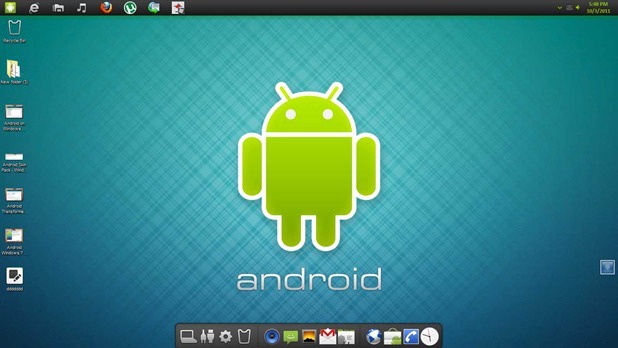
Convert Windows 7 into Android | Android Trasformation Pack for Windows

First time am posting about conversion of Windows into Android, And i am excited for it... 
Well this is really easy to apply as its comes with a setup and transformation package like as you get in Mac transformation one and after simply running the package it will extract the elements and then install them one by one.
Android Transformation Pack For Windows 7 DownloadAndroid Transformation Pack For Windows 7 DownloadRequirements 
1. Must have Windows 7 Installed.
2. Minimum of 1 GB Ram Installed.

Steps to install the transformation pack

1. Download the transformation package according to system from below.
2. After Downloading Run the installer and than accept the terms and than follow the steps to install.
3. Package will automatically apply any patching needed so you don’t have to worry about anything.

DOWNLOAD 32 BIT PACKAGE DOWNLOAD 64 BIT PACKAGE

How to make CON folder in windows

Folder with Name "con"
many people knows that we cant make folder "con" in windows, even microsoft dont knows.... :)
But i have a funny and amazing trick to make it.... 

Goto command Prompt,
Goto the location where you want to make the folder with name “con”.
write the command:
mkdir \\.\e:\con
To remove the folder again:
rmdir \\.\e:\con

Now Convert Windows 7 Into Windows 8 | Enjoy windows 8 without installation

Good Evening Friends, If you want to try the new Windows 8 Experience like Windows 8 Login Screen, Themes, Wallpapers, Metro UI, Aero’s Auto-Colorization, Taskbar UserTile and much more on your Windows 7 PC, try this tool Windows 8 UX Pack. It’s a freeware app which allows you to try the experience of Windows 8 on Windows 7 PC.

Windows 8 UXP is compatible with both Windows 7 x86 and x64. To use this app you have to uninstall any previous Windows 8 packs if you already using them. Its simple to use and you can also uninstall easily from Control panel.
Download the Windows 8 UX Pack from here

Download windows 8:
Windows Developer Preview with developer tools English, 64-bit (x64)
Windows Developer Preview English, 64-bit (x64)
Windows Developer Preview English, 32-bit (x86)

How to edit ISO Files | How to make changes in ISO file

Good Evening Friends....
Now these days i am very much busy in my projects. Yesterday i was thinking that how we can edit a iso file. I searched on internet and i got nothing... :(
Today in morning i was traveling in bus and i got an idea :)
So now the solution of problem is here....